Tutorial - Authentification with Json API
Learn how to implement a user authentification with the Json API

By Thorium Builder Team - December 2020
In this Tutorial, we will learn how to implement a basic authentification with the Json API.
There are many ways to implement such feature, that’s the reason why this is not existing as a widget in Thorium, but we’ll try to explain how you could start your authentification implementation, and then you will be able to complete this example with your own requirements.
Getting Started
The first thing we have to do is to create the page that will contain the user-password form.
There are 2 possibilities:
You want the user to always enter his email/password when entering to the App, then we can add the Connect form to the index page, and open another “Home Page” when the login is successful.
You want to test the session token when entering to the App, and show the Connect dialog only if there’s no valid token
We will implement the first version in our tutorial, but the logic is almost the same with the 2 solutions.
Interface
The first step is to create a new project with a connection form:
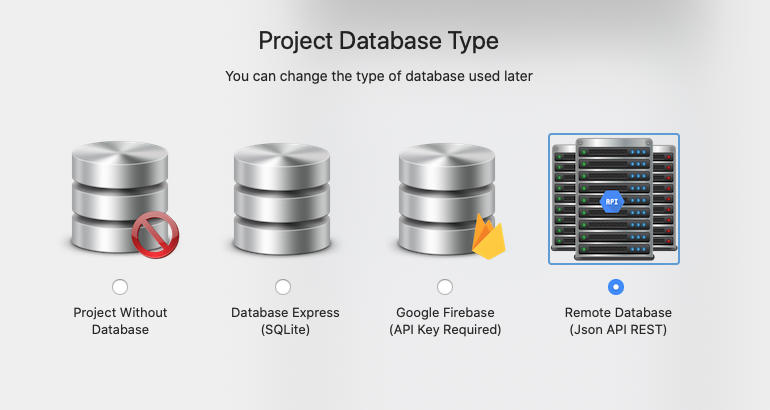
Don’t forget to add the Json API to your project when creating it.
Then, add a Json API Form builder widget to your index page with 2 fields: email and password:
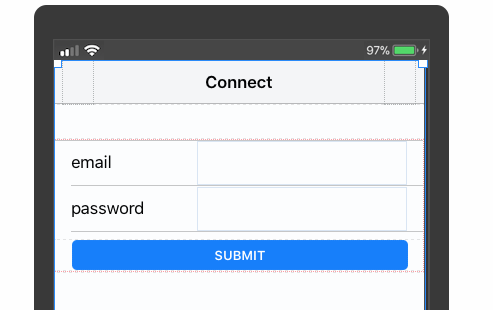
The email field must be of type “Text Input -> email” and the password of type “Text Input -> password”, and both with the “Required” attribute checked.
We will also create a page with the name “home” that will be the main page for the app after login.
Then you have to setup the Form Workflow as following:

Type: Json API form
Initial Value: Empty Form
Trigged Action: Call an API
Put here the address of your remote API, and set the Method and data-type (in our example, we will use the POST Method with the data sent as “Form Data"
Test the API Returned value: activate this option, and add the name of the Javascript function that will be called from the result (myConnectFunction in our example)
Getting the API result
Let’s say that our function is returning a simple json with a code and a message.
For example, if the result is OK we receive:
{code:1,message:Connected, username: John Doe, token: zdrezr5dz543df453233’}
and if there is an error we receive:
{code: x ,message:Error ….}
where x is the error code and message the error message.
At this step, if we run the APP, the form is displayed, but if we enter our email/Password, then nothing happens:
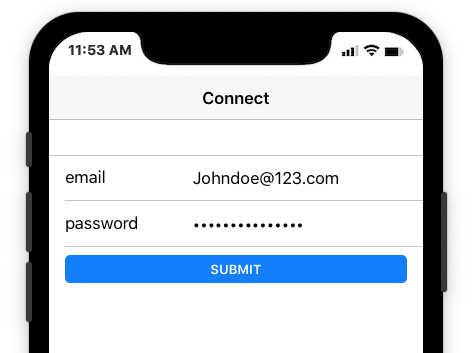
We have to handle the form result with our function myConnectFunction
Open the custom code editor from the menu Project:
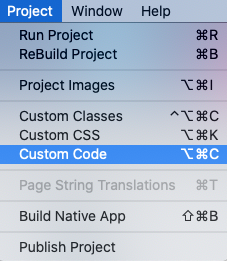
And add the function as follows:
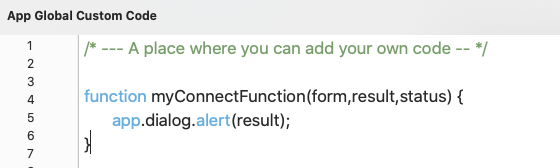
Note that the function will automatically receive 3 parameters: the form object reference, the API result, and the XHR request status code.
If we run again the App, then the result returned by the API is displayed in a message:
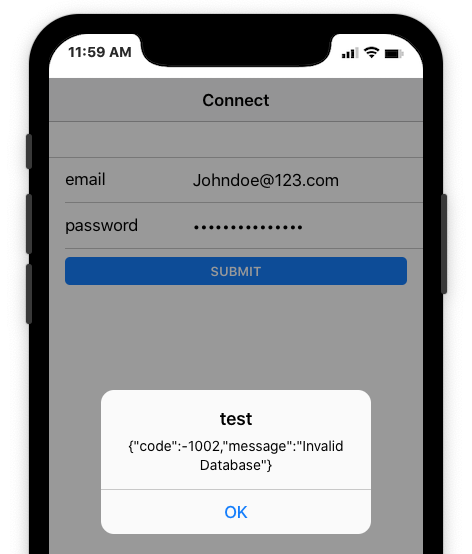
Let’s add some code in order to handle this result:
function myConnectFunction(form,result,status) {
var r=JSON.parse(result);
if (r.code==1) {
localStorage.setItem("token", r.token);
localStorage.setItem("username",r.username);
thoriumCorePlugin.loadpage("home","”);
} else {
app.dialog.alert(r.message);
}
}
In this code, we parse the returned result and we transform it into a JS object with JSON.parse.
We test the returned code, and if this code is equal to 1, we store the returned username and token to the local storage.
If the returned code is not equal to 1, we simply display the error message returned by the server.
If the returned value is 1, then, we also open the “Home page” (we called it home in our example) with the Thorium shortcut thoriumCorePlugin.loadpage("home","”);
Note: remove the “Back” button from the Home page Navbar, so the user can’t go back to the index page.
If you need to access later to the data stored in the local storage, you just have to get the value as following:
var myToken=localStorage.getItem("token");
Obviously this is a basic example and it can be improved.
